How to use Solid Explorer app to access SMB network shares from an Android device
Updated
There are many File Managers/File Explorers on the Google Play Store, but I wanted to easily access the Samba share on my server while on my home network. Solid Explorer is the solution I went with and it works well, so here is a quick guide to setting it up.
Table of Contents
If you’re here in 2025 because accessing SMB shares through Solid Explorer broke at some point, I’ve added a fix for this issue here.
About Solid Explorer
Solid Explorer by Neatbytes is a powerful, easy to use file manager for Android devices lets you connect to cloud storage and network folders including (among others) Google Drive, Dropbox, S/FTP, and for our purposes, SMB shares. By connecting an SMB share to Solid Explorer, you can easily interact with server files using a slick GUI and transfer files between server and device. Solid Explorer can be downloaded from the Google Play Store for free.
Prerequisites
This will assume that you already have a Linux server with SMB shares set up, I will only be explaining how to configure Solid Explorer to connect to existing shares.
Connect Solid Explorer to SMB share
First, make sure you’re on the same Wi-Fi network as the SMB share you want to access in Solid Explorer. (Setting this up to be available from outside the home network is possible, but beyond the scope of this article. But this might interest you.)
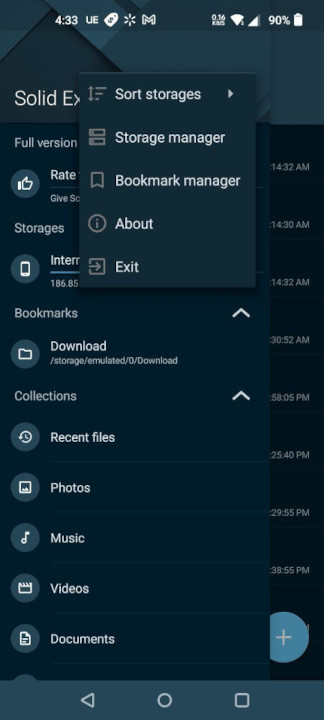
Open the Solid Explorer app and tap the hamburger menu at the top-left to bring up the menu, then tap the 3-dots and choose Storage manager.

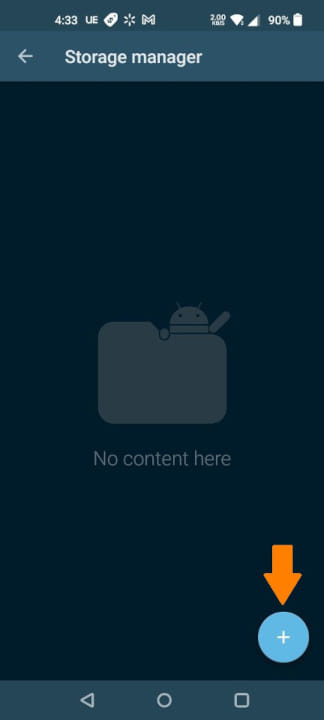
In Storage manager, tap the Plus (+) button to add a new connection.
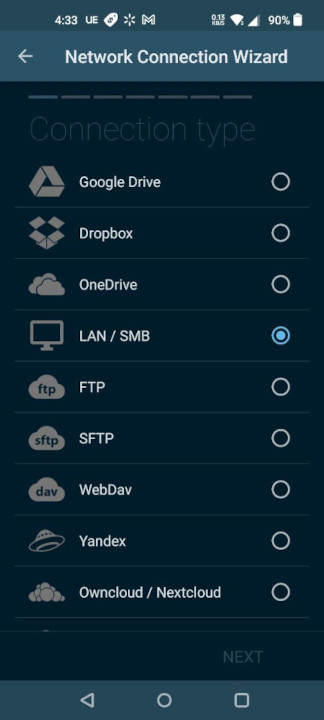
In the Network Connection Wizard, choose LAN / SMB and tap Next.
You should see any SMB shares in your network under server details, choose one and tap Next.

Choose your authentication method and tap Next. (I suggest using Username and password unless you have properly configured the SMB share for guest access, otherwise you may experience permissions issues.)
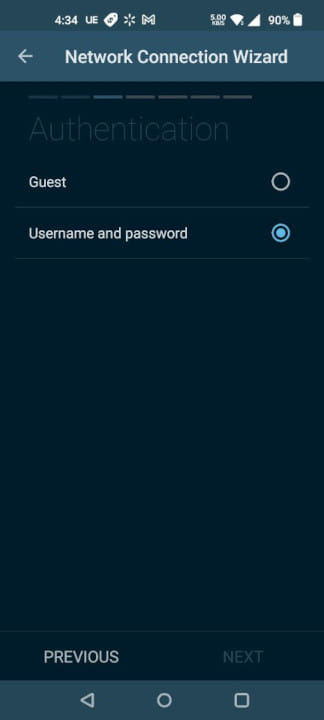
If you chose Username and password authentication, you’ll be prompted for the login info. Enter it and tap Next.
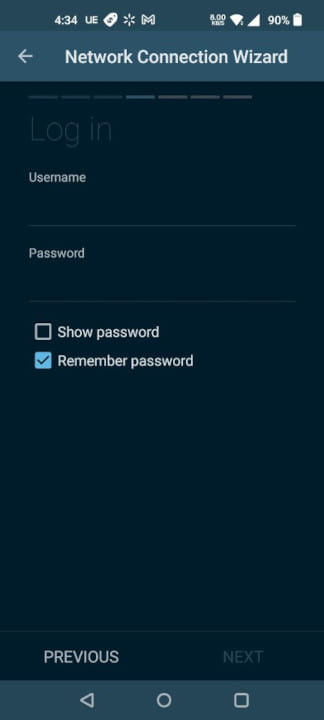
On the next screen, under Set advanced, choose Yes and tap Next.
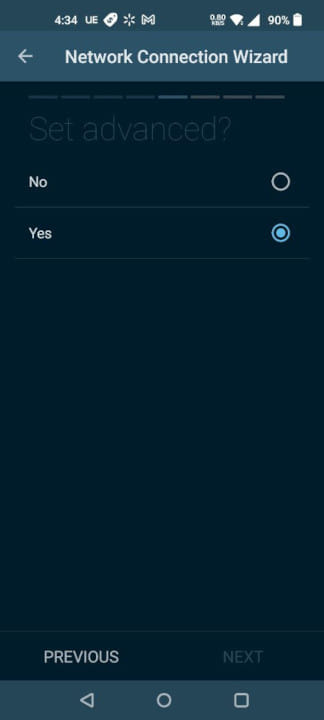
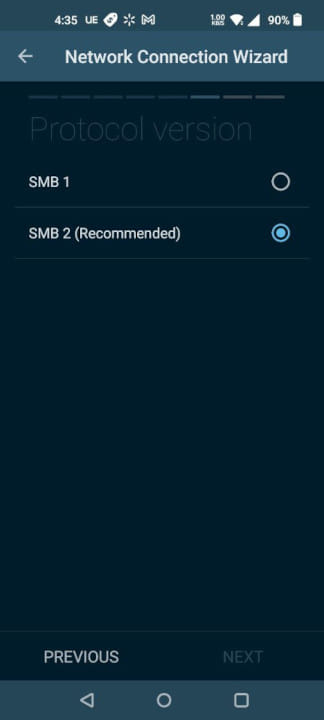
For Protocol version choose the recommended SMB 2, then tap Next. On the next screen choose whether to use encryption (if your SMB share is encrypted) and tap Next.
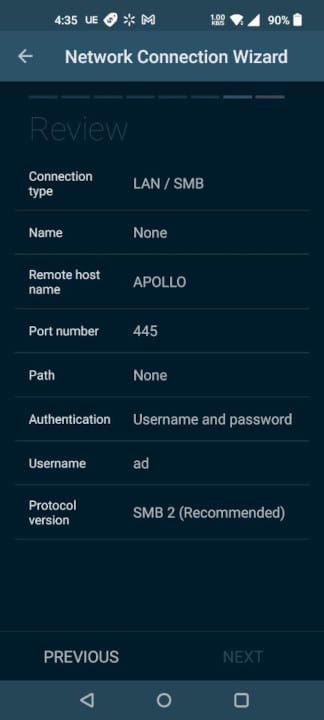
You’ll get to review your settings, if everything is correct tap Next.
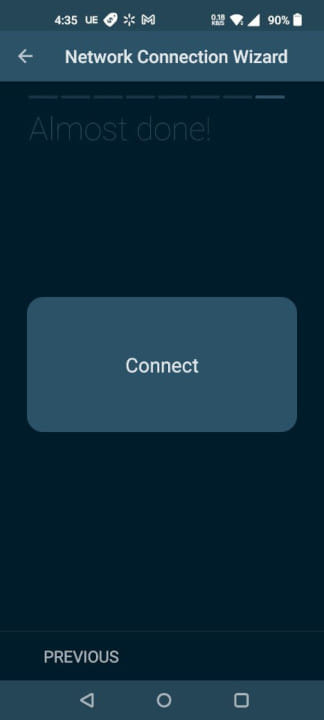
On the following screen, tap the big Connect button.
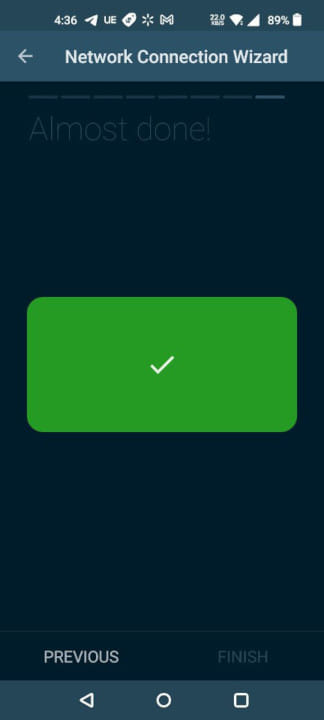
If everything is properly configured, the button will turn green with a checkmark. Tap Finish.
As of 2025 there is an issue where Solid Explorer will not connect to SMB shares (and even shares previously added to Solid Explorer will stop working), but this comment on the Solid Explorer subeddit explains a quick and simple fix.
- Edit the Samba configuration file at
/etc/samba/smb.conf, under the[global]section addnetbios disable = yes, then save the change.- Stop and disable the Netbios daemon with
sudo systemctl stop nmb && sudo systemctl disable nmb.- Restart the Samba daemon with
sudo systemctl restart smb.(Note: You may have to use
smbdandnmbddepending on your Linux distro.)Now when you go through the steps of adding the share in Solid Explorer’s storage manager, the scan will not discover your server with SMB shares, but once done you’ll see Didn’t find what you’re looking for? with an up arrow ↑ next to it — click the arrow and manually add your server details, it should then connect to the SMB share. (If it does not, reboot the SMB server and try again.)
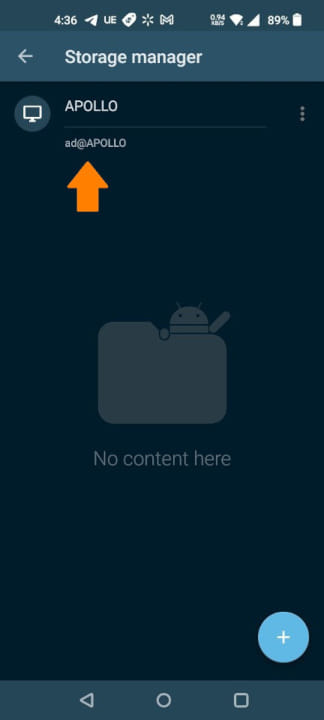
You’ll see your server under Storage manager. Tap the back arrow (<-) to go back to the menu.
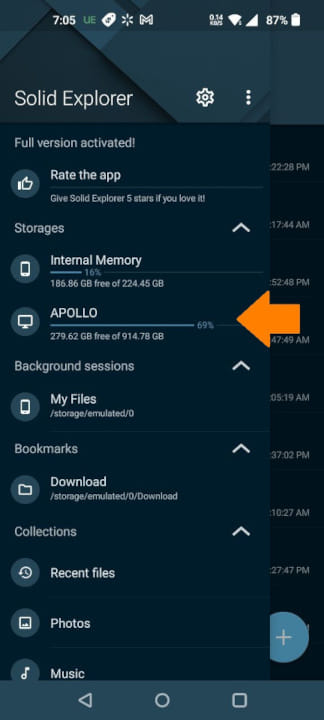
You should see the SMB share among the options under Storages.
You’re done! Now you can easily access your SMB shares from your Android device with Solid Explorer, and it even has built-in media players, image viewer and text editor.
Transferring files via Solid Explorer
Transferring files between your Android device and SMB shares is done by using panes. If you swipe left and right on your phone or tablet’s touchscreen, you’ll switch to a different pane, and you can navigate to different directories on each pane. Navigate to an SMB share on one pane, and to one of your device’s internal directories on the other pane.
To transfer between device and share, tap a file and hold for a moment to select it. You can tap additional files to select them as well. Then tap on the three dots (…) on the bottom menu, then choose Transfer from the options.
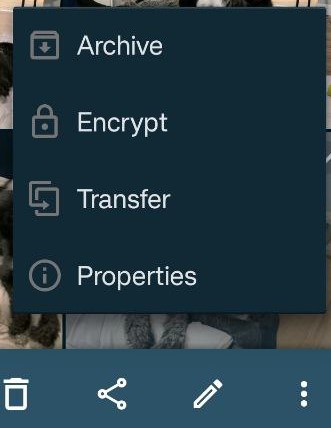
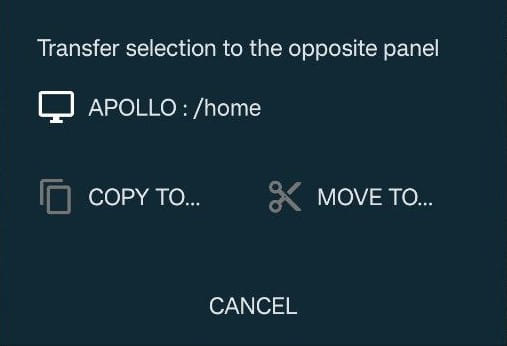
A pop-up will show the destination of the file transfer, tap either Copy to… or Move to… (which removes it from the source directory) to begin the transfer.
You’ll see a circlular progress bar on the bottom right, when the transfer is done it turns into a green checkmark.
